
If you’ve been keeping an eye on what’s happening in AI video generation lately, you’ve probably heard the buzz Google’s Veo 3.1 has landed on Invideo, and it’s nothing short of revolutionary. Whether you’re a content creator trying to go viral, a business owner looking to enhance brand storytelling, or an educator wanting to visualize complex lessons, this integration changes everything.
A New Milestone for AI Video Creation
For the past few years, tools like Sora have been redefining how we think about video. But Google Veo 3.1 stands apart. It’s the latest innovation from DeepMind, designed to render incredibly lifelike, cinematic videos from nothing more than text prompts or still images. The technology effortlessly blends creativity and realism, making it feel like each scene was filmed with an actual camera crew.
Now, you can use Veo 3 AI video generator directly on invideo. Anyone can create high-quality video content no expensive film set, editing knowledge, or visual expertise needed.
What Makes Google Veo 3.1 on Invideo So Impressive?
Veo 3.1 isn’t just a step forward in AI video generation it’s a complete leap. Here’s why Creators are calling it a game-changer:
- True-to-life cinematics: Veo 3.1 outputs realistic 1080p visuals with smooth motion, depth, lighting, and perspective. Every movement feels natural and intentional.
- Long, coherent scenes: While older models could only generate a few seconds of usable footage, Veo 3.1 creates up to 30-second cinematic clips that flow perfectly from start to finish.
- Frame and object referencing: Upload one starting frame and one ending frame, and watch Veo 3.1 generate seamless transformation with realistic animations in between.
- Character consistency: No more flickering faces or changing outfits between cuts. Veo 3.1’s multi-image referencing keeps characters visually coherent throughout the clip.
- Native sound generation: The model understands the scene and adds ambient sound and subtle background audio, giving the video depth and immersion.
How to Use Google Veo 3.1 in Invideo
Getting started is shockingly simple. Whether you’re making ad visuals, educational explainers, or cinematic storytelling videos, here’s how the process works:
- Log in to your Invideo account. Navigate to the AI Tools section and select “Google Veo 3.1 Generator.”
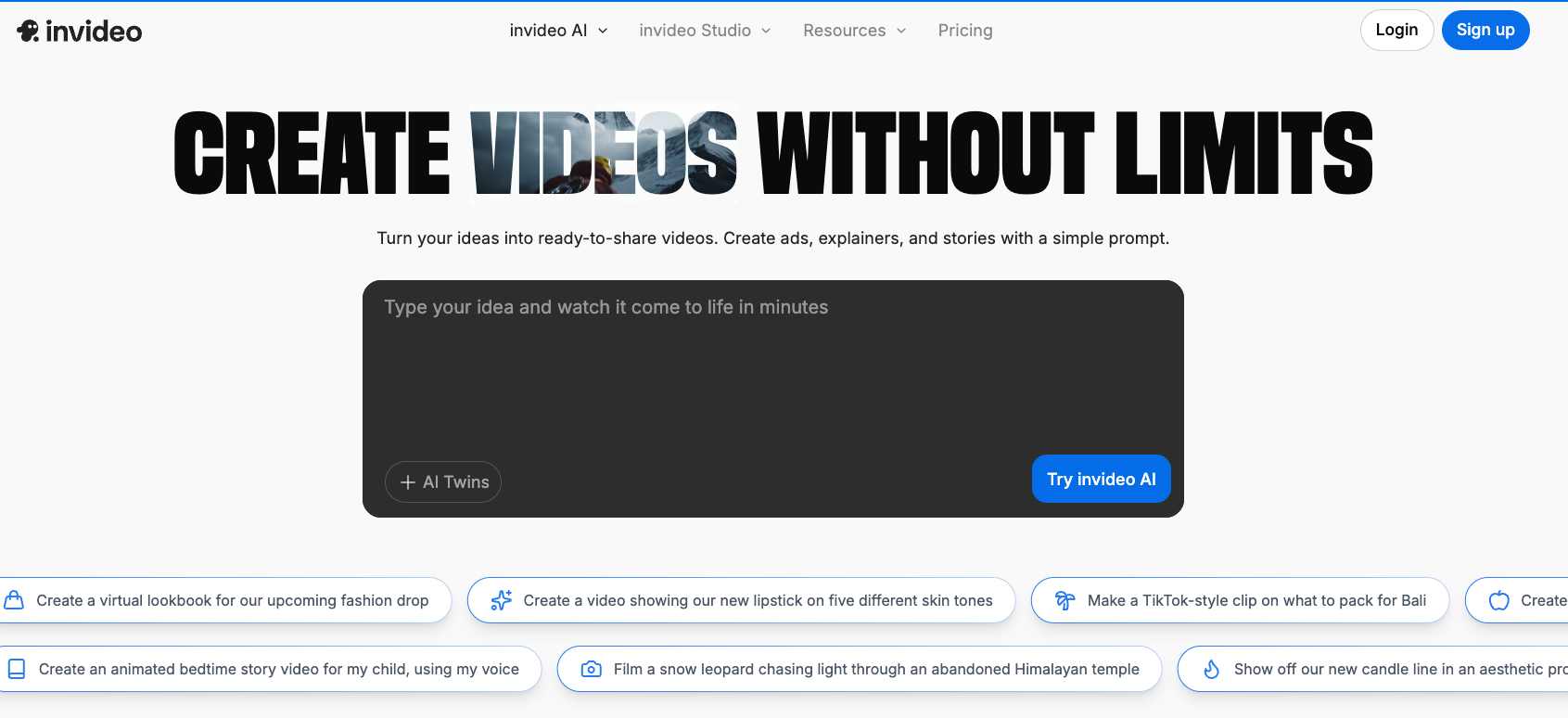
- Upload your key frames (optional). For full cinematic control, add a starting and ending image that reflects your story’s opening and conclusion.


- Write your prompt. Describe your idea vividly. Mention the setting, lighting, mood, and any camera details. The more descriptive you are, the better Veo performs.
- Click Generate. Invideo uses DeepMind’s model to process your request and produce a realistic cinematic video.
- Edit and personalize. Add music, captions, effects, or voiceovers inside Invideo’s built-in editor before exporting your final version.
Example Prompt
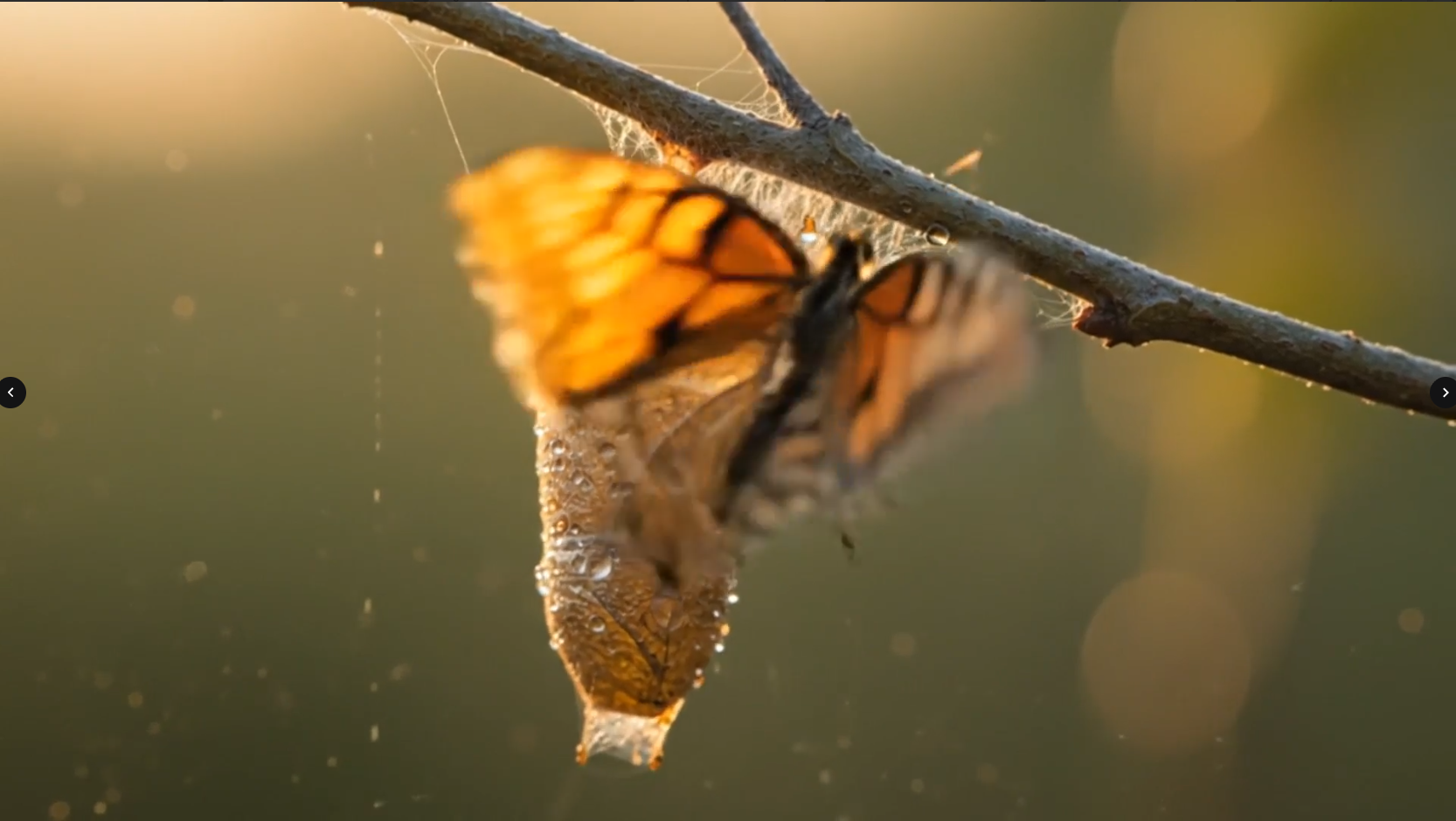
“Create an 8-second cinematic macro shot of a cocoon hanging on a branch in golden morning light. The cocoon gently twitches, and a small crack appears near the top. A butterfly slowly emerges, pushing its damp wings outward through torn silk. Threads snap microscopically, dew trembles and slides off, and soft particles drift in the sunlight. The butterfly unfolds its wings gradually, shimmering in warm amber and orange tones. The light is consistent—soft golden-hour glow from the right, illuminating the wings with translucent detail. Cinematography: 85mm macro lens, f/2.0, ultra-shallow depth of field. Color palette: warm beige, soft green bokeh, amber highlights. Mood: quiet transformation, organic beauty, intimate detail.”
The output? A jaw-droppingly realistic clip that feels like it was filmed on set, not generated by text.
Real-World Use Cases
- Marketers & Brands: Generate campaign teasers, explainer ads, and social clips that look like studio productions.
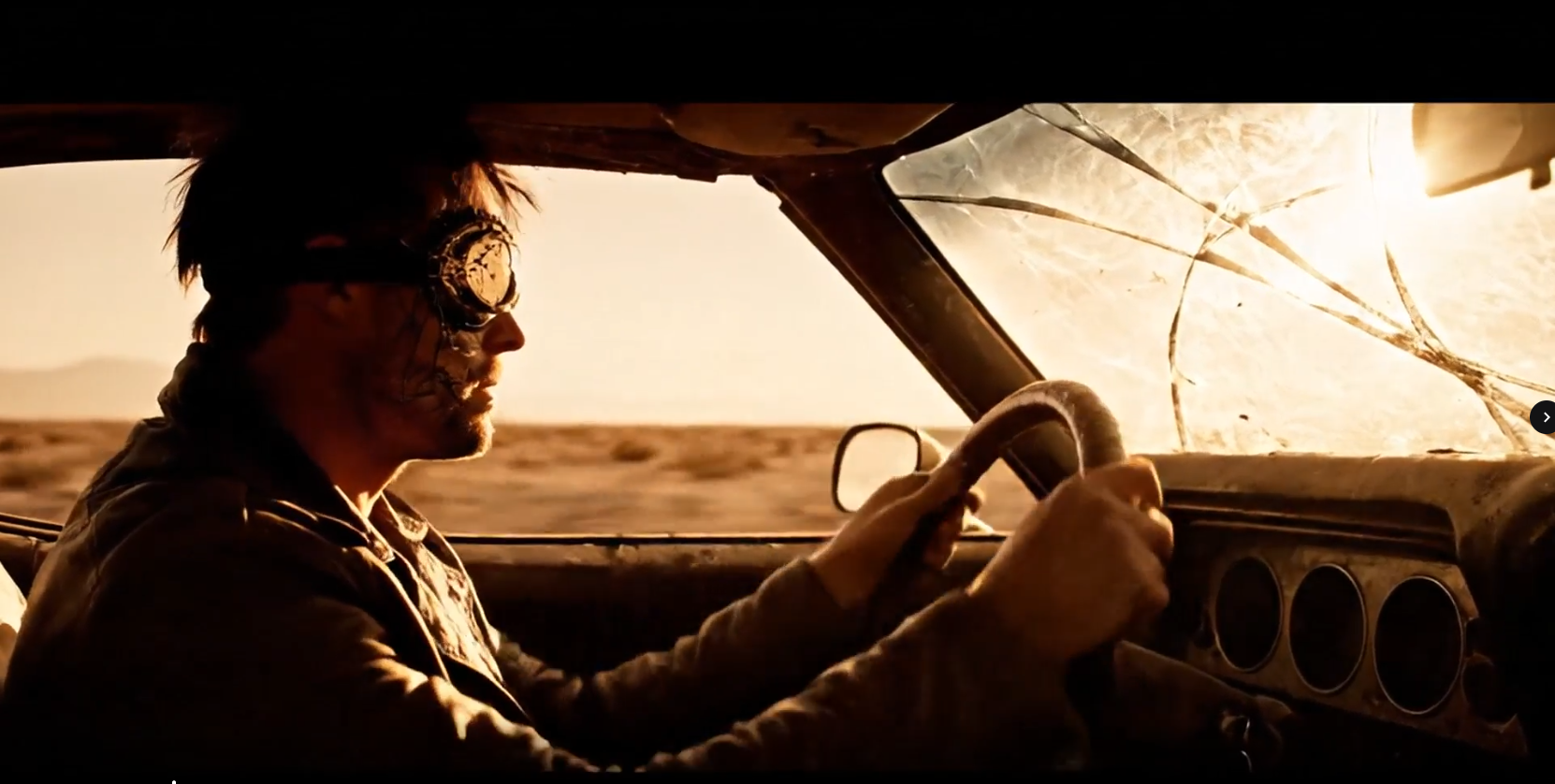
- Creators & Influencers: Instantly turn creative prompts into mesmerizing Reels or YouTube intros.
- Real Estate Professionals: Produce walkthroughs and before-after transformations using image references.
- Educators & NGOs: Build conceptual explainers or narrative-driven awareness videos with a few descriptive lines.
- Filmmakers & Storytellers: Test visual ideas or entire mood sequences before production to visualize scripts quickly.
Why This Collaboration Matters
Invideo’s seamless interface paired with Veo 3.1’s deep generative intelligence represents the ultimate fusion of accessibility and power. With no technical learning curve, creators can now realize ideas that once required days of filming and editing in minutes.
The combination also means you maintain creative control without worrying about technical consistency. Smooth motion, correct physics, and matching frames are all handled by Veo’s underlying architecture. All you need is imagination.
Creativity Meets Control
Google Veo 3.1 isn’t just about automation. It’s about creative amplification. Artists, educators, and entrepreneurs can now focus on what story they want to tell, not how they’ll shoot it.
From breathtaking nature scenes to detailed product showcases, Veo understands descriptive prompts with astonishing precision. This blend of AI perception and user control makes it one of the most artistic AI video tools yet integrated into a mainstream platform.
Conclusion
Video storytelling is shifting gears, and the Veo 3.1–Invideo partnership is right at the center of that transformation. You no longer need to choose between quality, cost, and speed this AI-powered duo delivers all three.
Whether you’re working on brand promotions, online courses, tutorials, or short-form social content, Veo 3.1 on Invideo opens doors to limitless cinematic creation.
FAQs
1. What is Google Veo 3.1, and how is it different from other AI video tools?
Google Veo 3.1 is DeepMind’s most advanced text-to-video model, capable of interpreting detailed prompts into cinematic scenes. Unlike previous generation tools, it ensures frame consistency, physics accuracy, and native audio, producing videos that look genuinely filmed.
2. Do I need professional video editing skills to use it?
Not at all. Invideo makes the process fully guided. You upload your images or write a descriptive prompt, and the AI handles everything from motion to lighting and sound.
3. Can I generate business ads or branded content?
Yes. Many users employ Veo 3.1 for ads, product visuals, and motion storytelling. You can also use brand-specific reference images to maintain visual identity.
4. Is the output free from watermarks?
All paid Invideo plans generate watermark-free videos using Veo 3.1 integration.
5. Can I edit the generated video afterward?
Yes, you can make edits directly in Invideo add your logo, music, overlays, or cut clips for different formats like reels, ads, or YouTube intros.
6. What makes the Veo 3.1 and Invideo combination ideal for marketers?
It saves hours of manual effort, speeds up creative testing, and allows instant production of polished visuals. It’s the perfect blend of AI precision and storytelling power.