
Spotify has become one of the world’s most popular music streaming services, giving millions of users instant access to songs, podcasts, playlists, and curated recommendations. While Spotify Premium offers extra perks such as ad-free listening, unlimited skips, and offline playback, not everyone needs those features forever. Some users might want to save money, others may only listen occasionally, and some may simply prefer to explore free alternatives.
If you’ve been wondering how to cancel Spotify Premium and switch to the free plan, this guide will walk you through everything you need to know. From understanding what happens after you cancel to step-by-step instructions for different devices, we’ll cover the entire process in detail.
Why People Cancel Spotify Premium
Before jumping into the cancellation process, it’s helpful to understand why users often downgrade from Premium to Free. This gives context to the decision and helps you evaluate whether it’s the right move for you.
- Cost Savings – Spotify Premium, depending on the plan (Individual, Duo, Family, or Student), ranges from moderate to higher monthly costs. Over time, this can add up, especially if you aren’t using the features fully.
- Limited Usage – Some people don’t stream enough music to justify the subscription. If you only listen occasionally, the free version might be sufficient.
- Exploring Alternatives – With rivals like Apple Music, YouTube Music, and Amazon Music Unlimited, many users like to try different platforms.
- Shared Accounts – Families or groups might consolidate into one streaming service, leading some to cancel individual subscriptions.
- Temporary Downgrade – Sometimes users cancel Premium temporarily due to budgeting or lifestyle changes but may return later.
What Happens When You Cancel Spotify Premium?
When you cancel your Premium subscription, you don’t lose your account or your playlists. Instead, your account reverts to Spotify Free at the end of your current billing cycle. Here’s what changes:
- Ad-Supported Listening: You’ll hear ads between songs.
- Limited Skips: You’ll only get a limited number of song skips per hour.
- No Offline Playback: Downloaded songs will be removed, and you’ll need an internet connection to listen.
- Lower Audio Quality: The streaming quality will default to standard rather than high-quality Premium audio.
- Play Order Restrictions: On mobile, many playlists will be on shuffle mode only.
The important thing is that your playlists, saved songs, and account data remain intact. Nothing is deleted when you downgrade to free.
How to Cancel Spotify Premium: Step-by-Step Guide
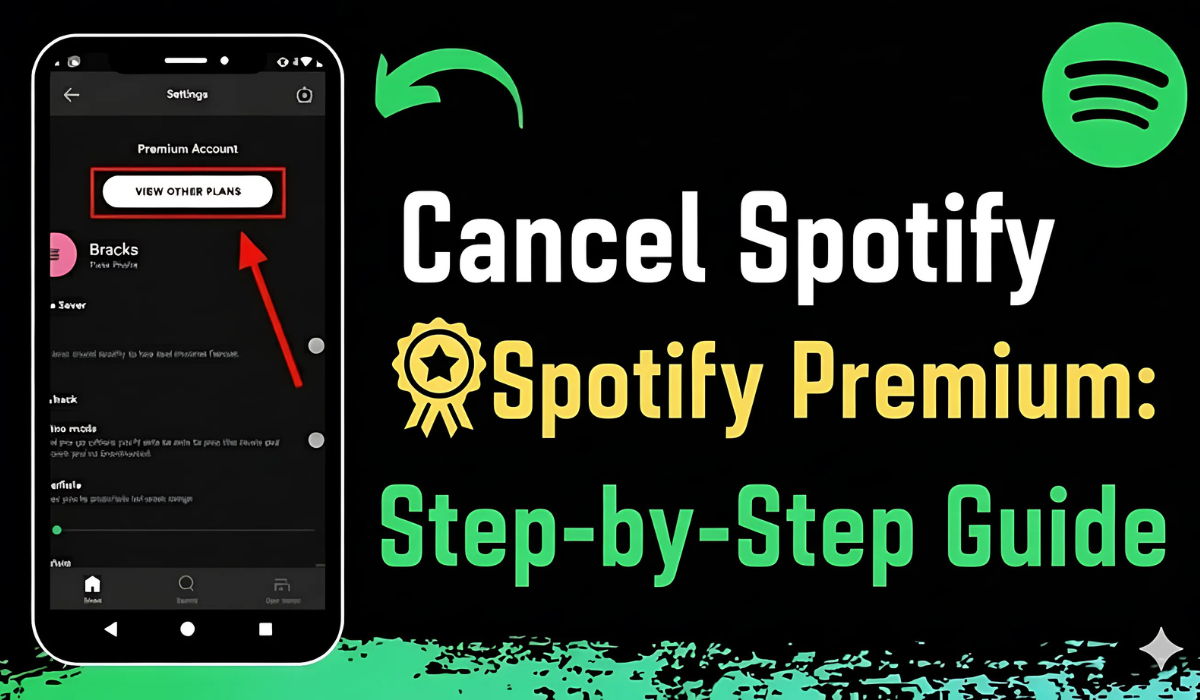
Spotify makes cancellation straightforward, but the process depends on how you originally subscribed. Let’s go through the main scenarios.
Cancel Spotify Premium Through the Website
If you signed up directly via Spotify’s website with a credit card, PayPal, or similar payment method, this is the simplest cancellation route.
Steps:
- Open your browser and go to Spotify.com.
- Log in to your account with your username and password.
- Click on your profile icon in the top-right corner and select Account.
- Scroll down to the Your Plan section.
- Click Change Plan.
- Scroll to the Spotify Free option.
- Select Cancel Premium and confirm your decision.
Once confirmed, your Premium plan will remain active until your next billing date, after which your account automatically switches to Free.
Cancel Spotify Premium on iOS (Apple Subscriptions)
If you subscribed via the App Store on your iPhone or iPad, Apple manages your subscription.
Steps:
- Open the Settings app on your iPhone/iPad.
- Tap your Apple ID name at the top.
- Select Subscriptions.
- Find Spotify in the list.
- Tap Cancel Subscription and confirm.
This ensures Apple stops billing you. Your account will then downgrade to Free at the end of the current billing cycle.
Cancel Spotify Premium on Android (Google Play Subscriptions)
For those who subscribed via Google Play, you’ll need to cancel through the Play Store.
Steps:
- Open the Google Play Store app.
- Tap your profile icon in the top-right.
- Select Payments & Subscriptions.
- Tap Subscriptions.
- Locate Spotify and select it.
- Tap Cancel Subscription and follow the prompts.
As with other methods, Premium remains active until your billing cycle ends.
Cancelling If You Subscribed Through a Third-Party Service
Some users subscribe through internet providers, mobile carriers, or bundled offers (like with Hulu or Samsung promotions). In such cases, you can’t cancel directly in Spotify. Instead, you must log in to the provider’s portal or contact their customer support to manage your subscription.
How to Switch to Free After Cancelling
Technically, you don’t need to do anything extra to switch to Spotify Free. Once you’ve cancelled Premium, the downgrade happens automatically after your billing cycle. But there are a few tips to make the transition smoother:
- Check Your Billing Date – You can find this in the “Account” section under “Your Plan.” Knowing the exact date helps you avoid confusion.
- Download Alternatives in Advance – If you plan to switch services, download apps like YouTube Music or Apple Music ahead of time.
- Update Your Playlists – Since offline downloads will disappear, ensure your favorite playlists are available for streaming.
- Stay Logged In – Don’t delete your account; simply let it revert to Free.
Common Problems and Fixes
Sometimes users encounter issues when trying to cancel. Here are a few troubleshooting tips:
- Can’t Find Subscription Settings: Check if you subscribed via a third party. Log in to your carrier or Apple/Google account instead of Spotify directly.
- Still Being Charged After Cancelling: Verify that your cancellation went through by checking your email confirmation. Also, ensure you cancelled on the correct platform (Spotify vs Apple vs Google Play).
- Want a Refund: Spotify generally doesn’t offer refunds for partially used months. However, Apple or Google may provide them in certain cases.
Alternatives to Spotify Premium
If you decide Premium isn’t worth it but still want ad-free or different experiences, here are some alternatives:
- Spotify Free – Ideal if you still want access to Spotify’s library without paying.
- YouTube Music Free – Offers a similar free plan with ads.
- Apple Music (Trial) – New users get trial periods that may suit short-term needs.
- Amazon Music Free – Another option for casual listeners.
Tips Before Cancelling Spotify Premium
- Use Your Premium Benefits Until the End: Don’t cancel right before your billing date unless you want to switch immediately.
- Export Playlists: If you’re moving to another platform, consider exporting your playlists using third-party tools.
- Check for Discounts: Sometimes Spotify offers student discounts, family plans, or limited-time deals that may lower your costs.
- Pause Instead of Cancel: In some regions, Spotify allows you to pause Premium for a set period rather than fully cancelling.
Final Thoughts
Learning how to cancel Spotify Premium and switch to Free is straightforward, but it’s important to understand the consequences before making the decision. While Premium offers valuable perks like ad-free listening, offline downloads, and high-quality sound, the Free version can be more than enough for casual listeners or those wanting to cut costs.
By following the right cancellation steps based on your subscription method—whether through Spotify’s website, Apple, Google Play, or a third-party provider—you can easily downgrade. Best of all, your account, playlists, and listening history remain safe, ensuring you can continue enjoying music even without Premium.
Whether you’re looking to save money, try another platform, or simply adjust your streaming habits, switching back to Spotify Free gives you flexibility without losing access to the music you love.
FAQ’s
Can I cancel Spotify Premium on desktop or only mobile?
You can cancel Spotify Premium from any device with internet access. The easiest way is through Spotify’s official website on a desktop browser, but you can also use your smartphone. The key is to log in to your account and navigate to subscription settings.
What if I don’t see the cancel option in my account?
If the cancel button doesn’t appear in your Spotify account, it usually means you subscribed through a third-party provider like Apple, Google Play, or a mobile carrier. In such cases, you must manage your subscription through that provider instead of Spotify’s direct platform.
Does cancelling Spotify Premium delete my account?
No, cancelling Premium does not delete your Spotify account. Your profile, playlists, and saved music remain intact. You simply lose Premium features like offline listening and ad-free streaming. You can continue using Spotify Free and upgrade back to Premium anytime in the future if you choose.
Can I pause Spotify Premium instead of cancelling?
In some regions, Spotify offers the option to pause your Premium subscription for up to three months rather than canceling outright. During this pause, you won’t be charged, and your subscription automatically resumes afterward. Check your account settings to see if this option is available to you.
What should I do if I was charged after cancelling Spotify Premium?
If you’ve been billed after cancelling, first check that you cancelled on the correct platform (Spotify, Apple, or Google Play). Review your confirmation email and billing date. If the issue persists, contact Spotify Support or your payment provider for assistance and possible resolution of accidental charges.